
4. Train the First Model and Publish to the Registry
📍 Where you are: Task Owner 4/7 — ① Design → ② Create Task → ③ Workspace → ④ Train · publish → ⑤ Approve → ⑥ Campaign → ⑦ Results
Screen: Agent Studio → FedOps Console · Next: wait for the Client’s join request
🎯 What you do in this step: Build the first model (Initial Model) on the Owner’s Hungarian data, get an automatic check that the code keeps its agreement with FedOps, then bundle code + first model + README and publish it to the Registry. From the moment you publish, Clients can find this Task and request to join. This is where the Owner track first connects with the Client.
- 1) Local Train & Export Model
- 2) Check Release Readiness
- 3) Submit Release Candidate
- 4) Publish to the Registry (FedOps Console)
- 5) Check in the Registry
- ✅ Checklist
- If something goes wrong
- Next
flowchart LR
  A["Local Train<br/>Initial Model"] --> B["Release Readiness<br/>automatic check"] --> C["Release Candidate<br/>submit (Studio)"] --> D["Owner Publish<br/>publish (Console)"] --> E["Public in the Registry<br/>→ Clients see it"]
1) Local Train & Export Model
Do this in Agent Studio → Workspace → handson-heart → Task Test tab (the screen where you saw Data detected at the end of chapter 3).
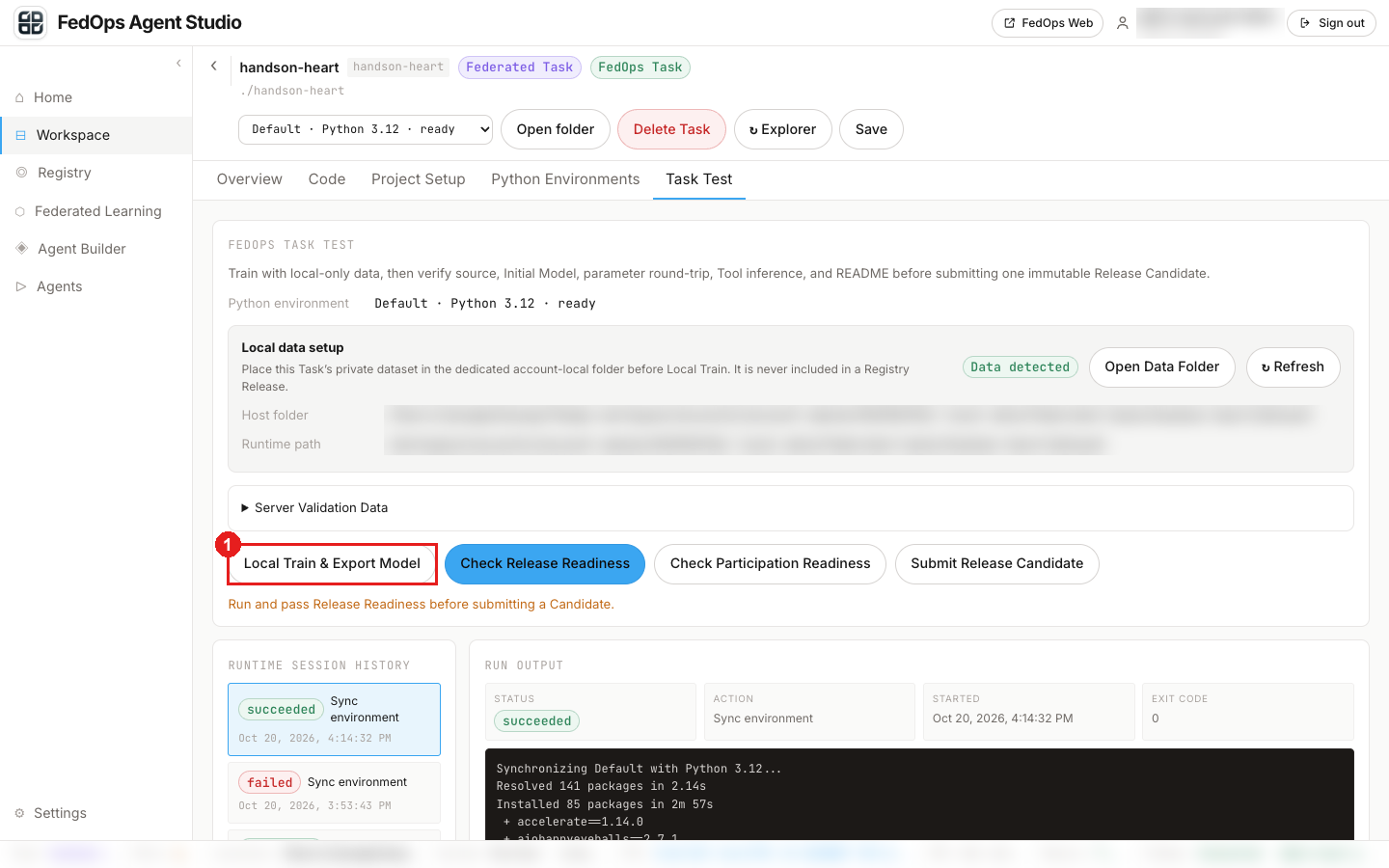
- Click Local Train & Export Model.
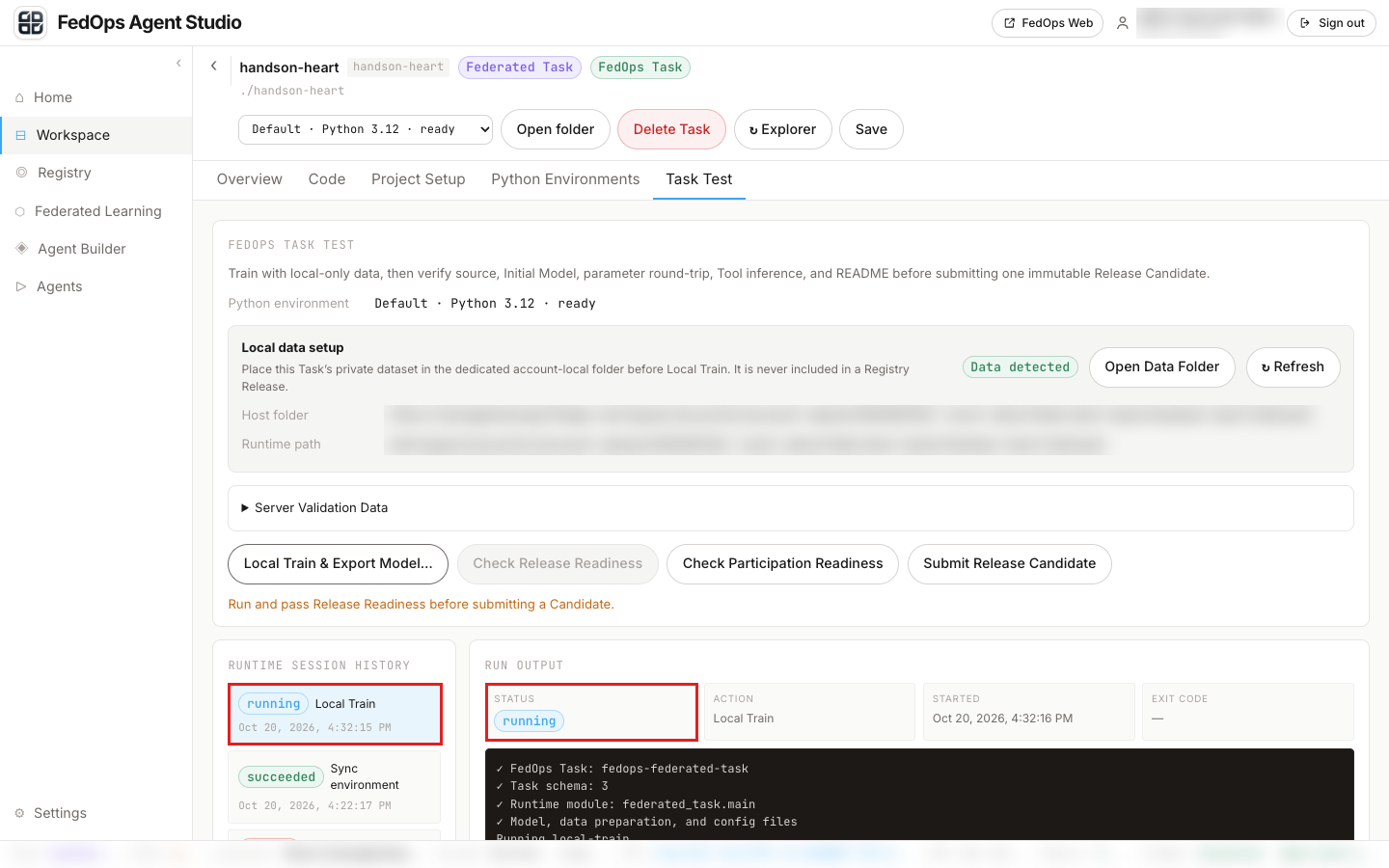
Scroll down and running · Local Train appears in the history on the left, with progress logs in the black panel on the right. Wait about 2 minutes (measured 2026-10-20 on a Mac).
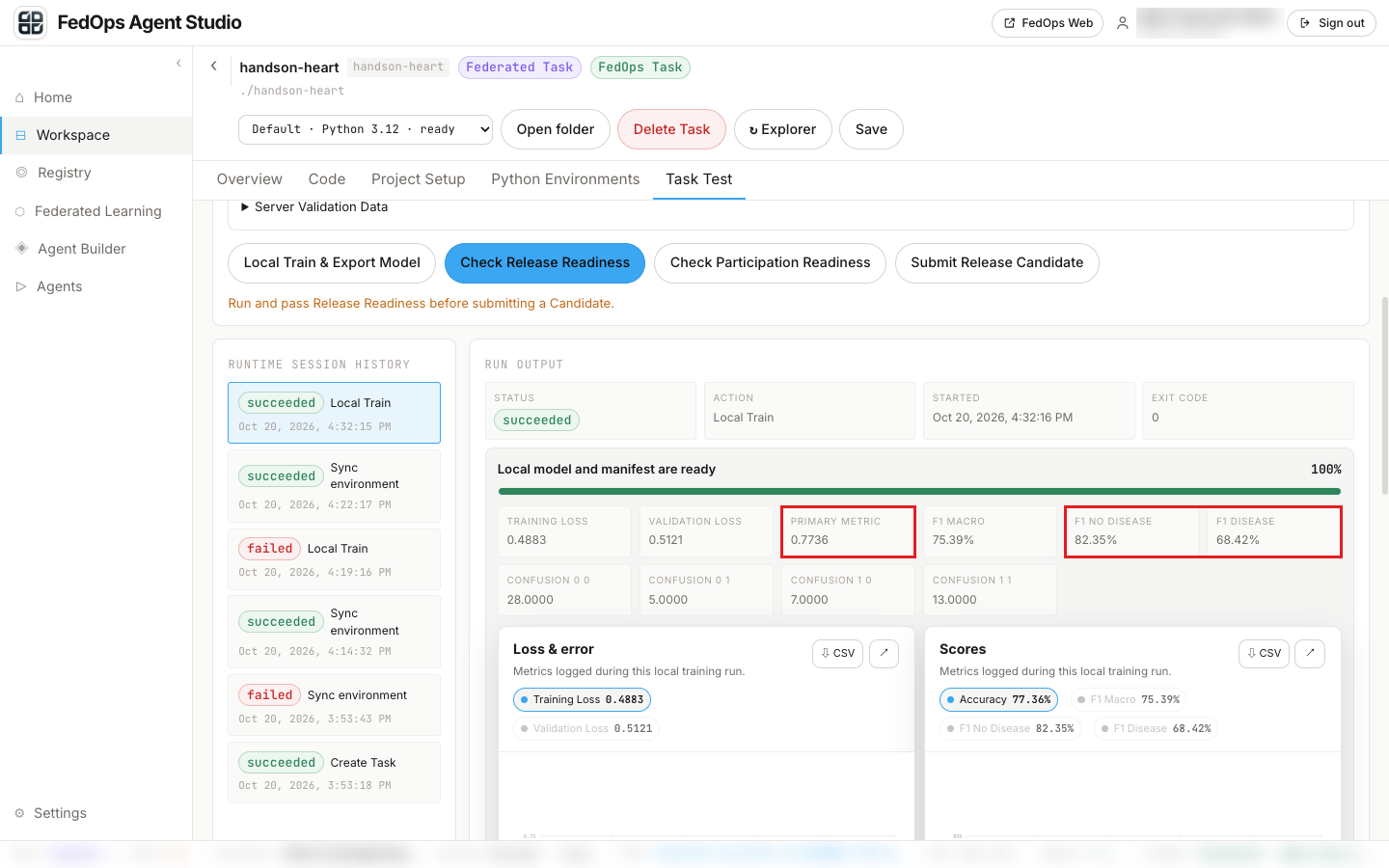
Done when STATUS changes to succeeded and the metric cards appear. Look at the boxed cards (measured 2026-10-20, test set of 53 of the 261 Hungarian rows).
| Card | Value |
|---|---|
| PRIMARY METRIC (accuracy) | 0.7736 |
| F1 MACRO | 75.39% |
| F1 NO DISEASE / F1 DISEASE | 82.35% / 68.42% |
- It passes if clearly above 0.62 (always guessing “no disease”). 62% of the Hungarian data has no heart disease.
- It may be lower than chapter 1’s regular training (about 0.8 with both hospitals pooled). Here only the Hungarian data was used.
- Look at F1 DISEASE. It is how well heart disease patients are caught. The Hungarian data has only 98 heart disease patients, so this value (68.42%) came out below accuracy. It missed 7 of the 20 heart disease patients in the test set as “no disease” (CONFUSION 1 0 = 7). In federated learning (chapter 6) you will see how this value changes.
Why this model matters: the model built here is the Initial Model. When federated learning starts in chapter 6, the server sends this model to every Client as the starting point of round 1. Starting from a model that has already learned something takes fewer rounds than starting from scratch.
2) Check Release Readiness
FedOps checks one by one whether the Task keeps its agreement.
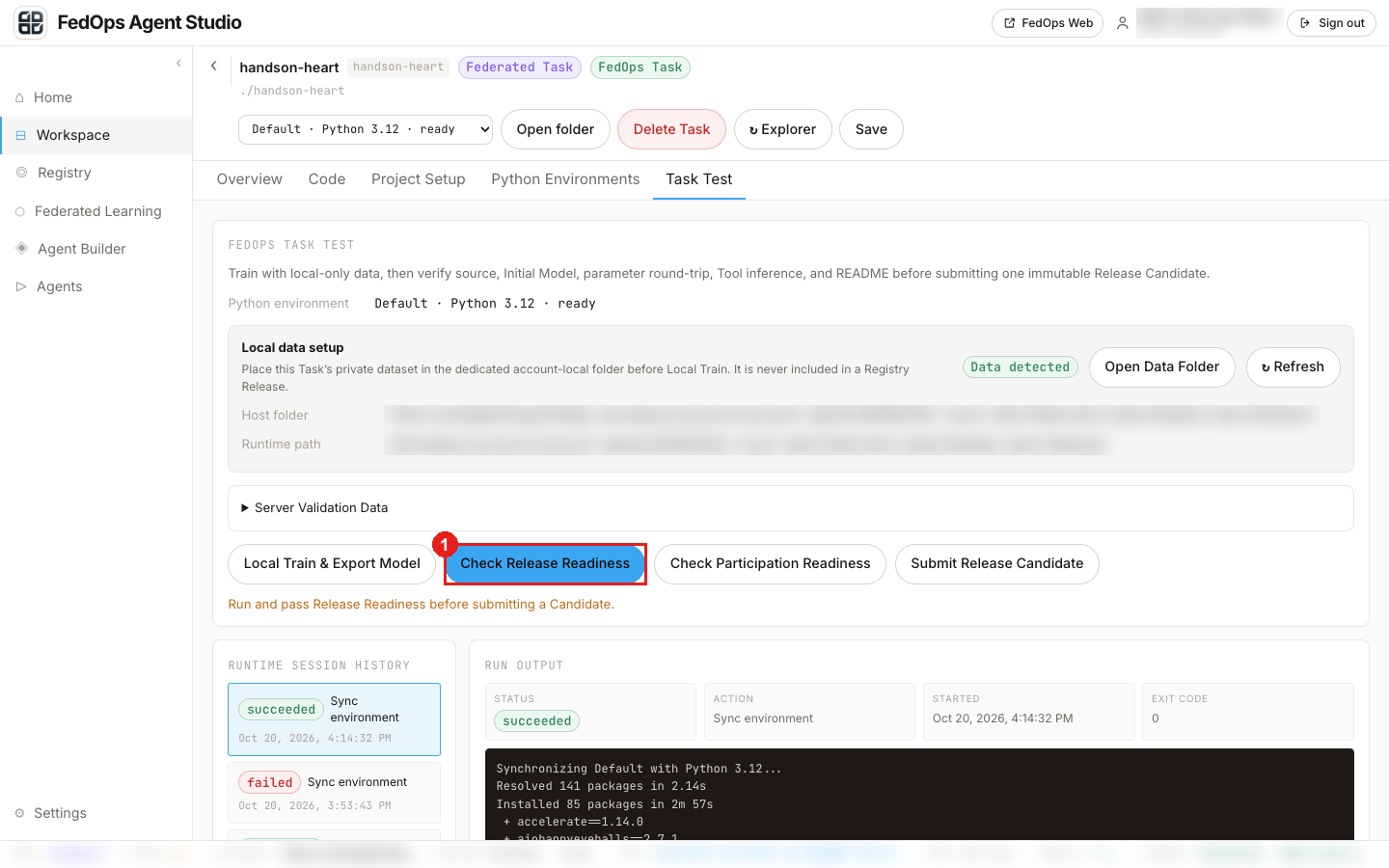
- Scroll up and click Check Release Readiness. (2–3 minutes, measured 2 min 24 s on 2026-10-20)
⚙️ Explained — what Readiness prevents
| Check | What happens if it fails |
|---|---|
| Required files and README sections | Clients cannot know the data format, purpose, or limits |
| Model file size and checksum | Clients receive a model broken in transit |
| Short training gives a finite loss and changes parameters | Clients run rounds of training that learns nothing |
| A federated client can be built with my model | Connection errors only after the server starts |
| Tool AI prediction runs | In the Model Use Track, the Agent cannot call the model |
| No raw data or paths leak | The Owner’s data or PC paths get mixed into the published bundle |
When federated learning breaks, it breaks on several institutions’ PCs at once. So there is a step where you run everything once on the Owner’s PC before publishing.
3) Submit Release Candidate
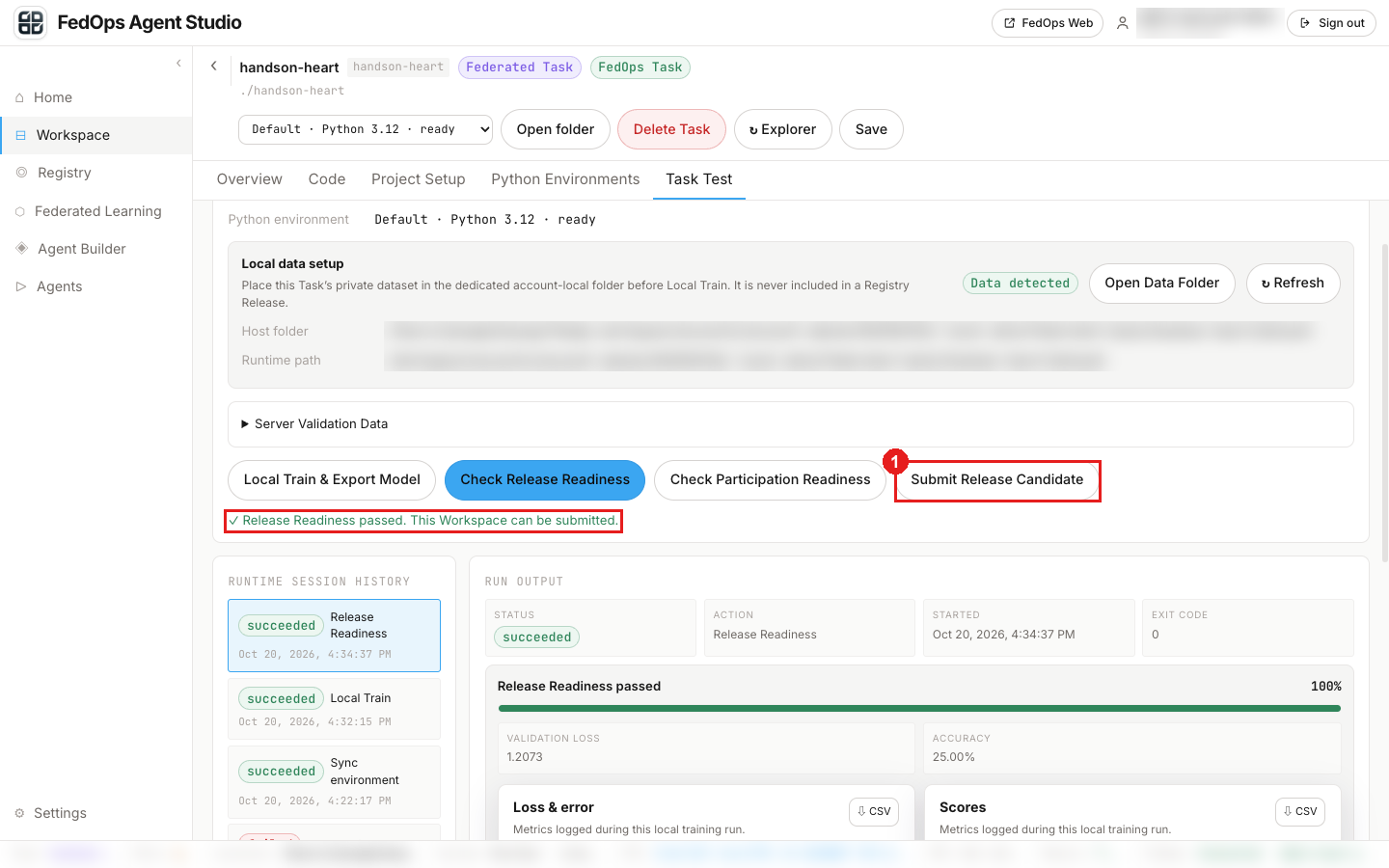
It passes when “✓ Release Readiness passed. This Workspace can be submitted.” appears below the button.
A low number such as ACCURACY 25.00% below can be ignored. It is from a very short training run for checking. The model’s performance is the 0.7736 from 1).
- Click Submit Release Candidate.
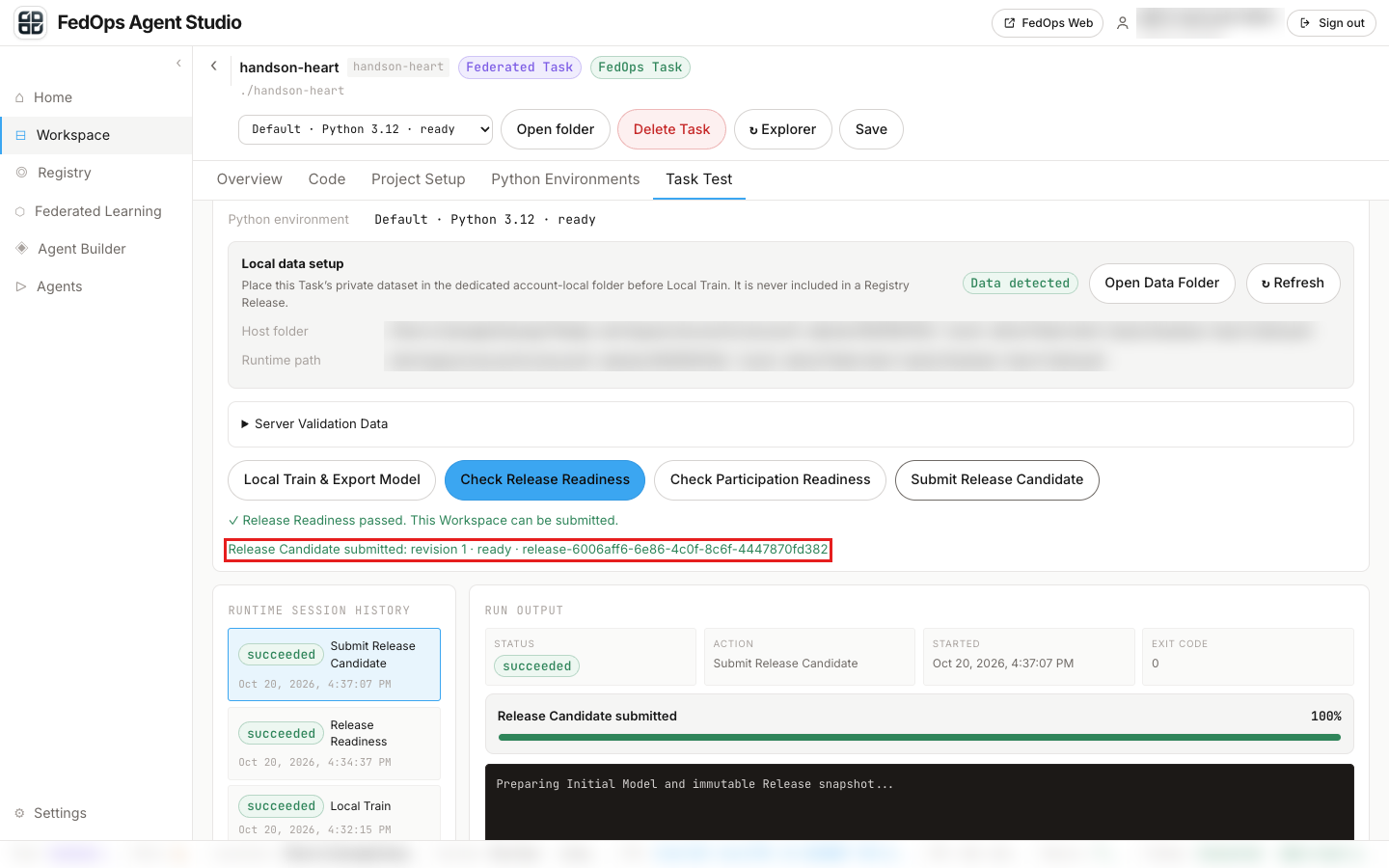
After a few seconds, “Release Candidate submitted: revision 1 · ready · release-…” appears. That is all for Studio.
4) Publish to the Registry (FedOps Console)
Now go to the FedOps Console (https://ccl.gachon.ac.kr/fedops/console) in your browser.
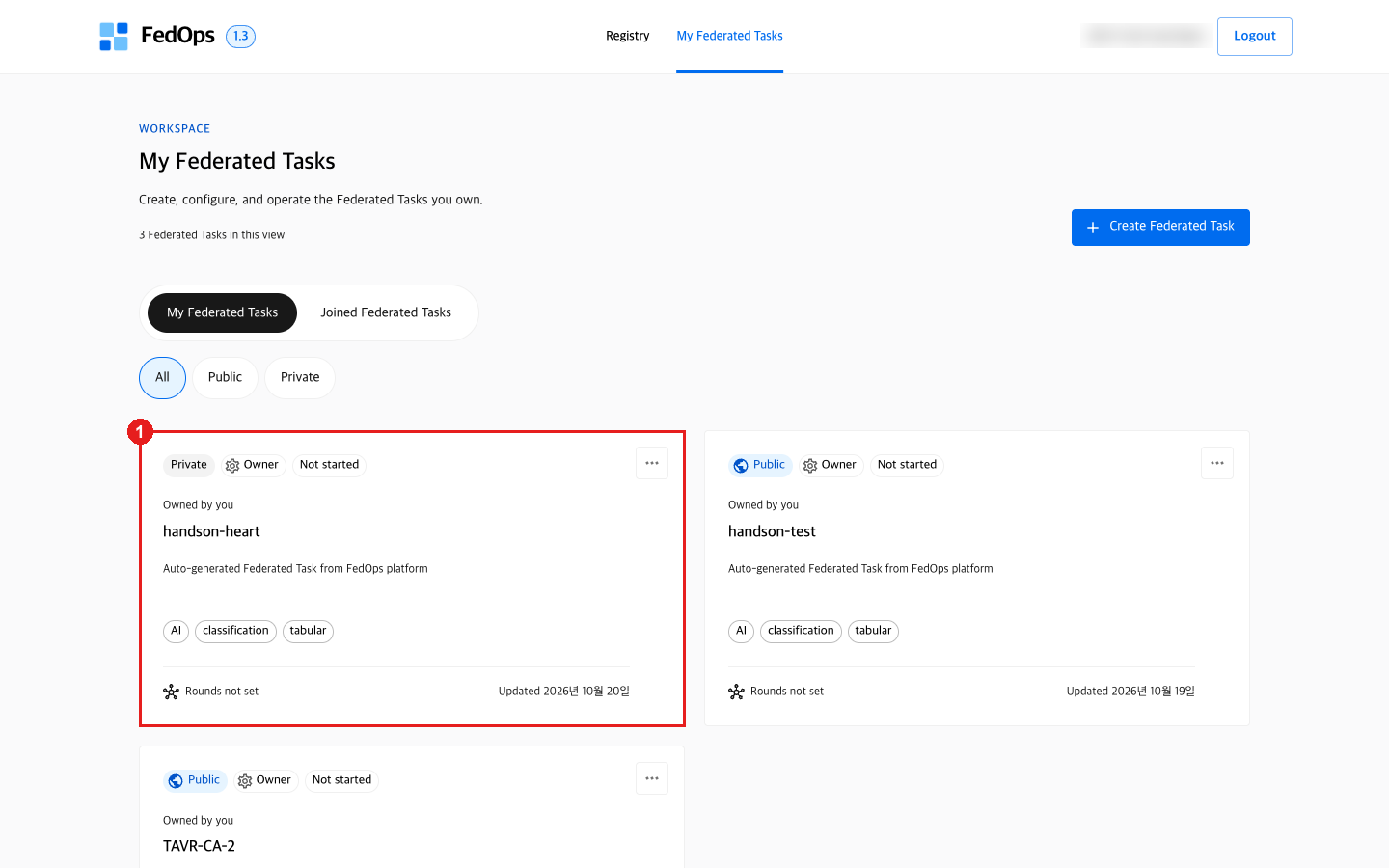
- In My Federated Tasks, click the handson-heart card.
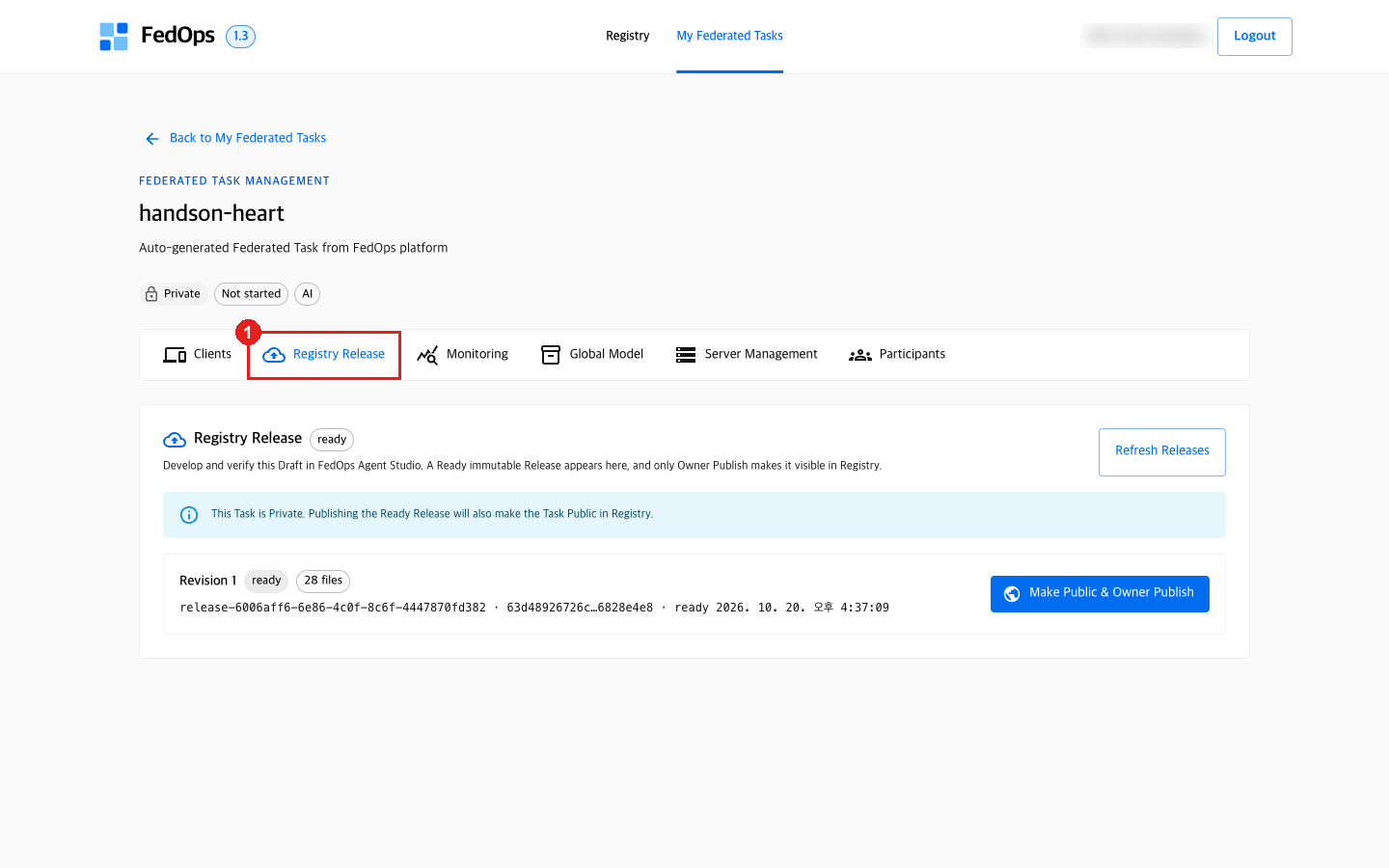
- Click the Registry Release tab.
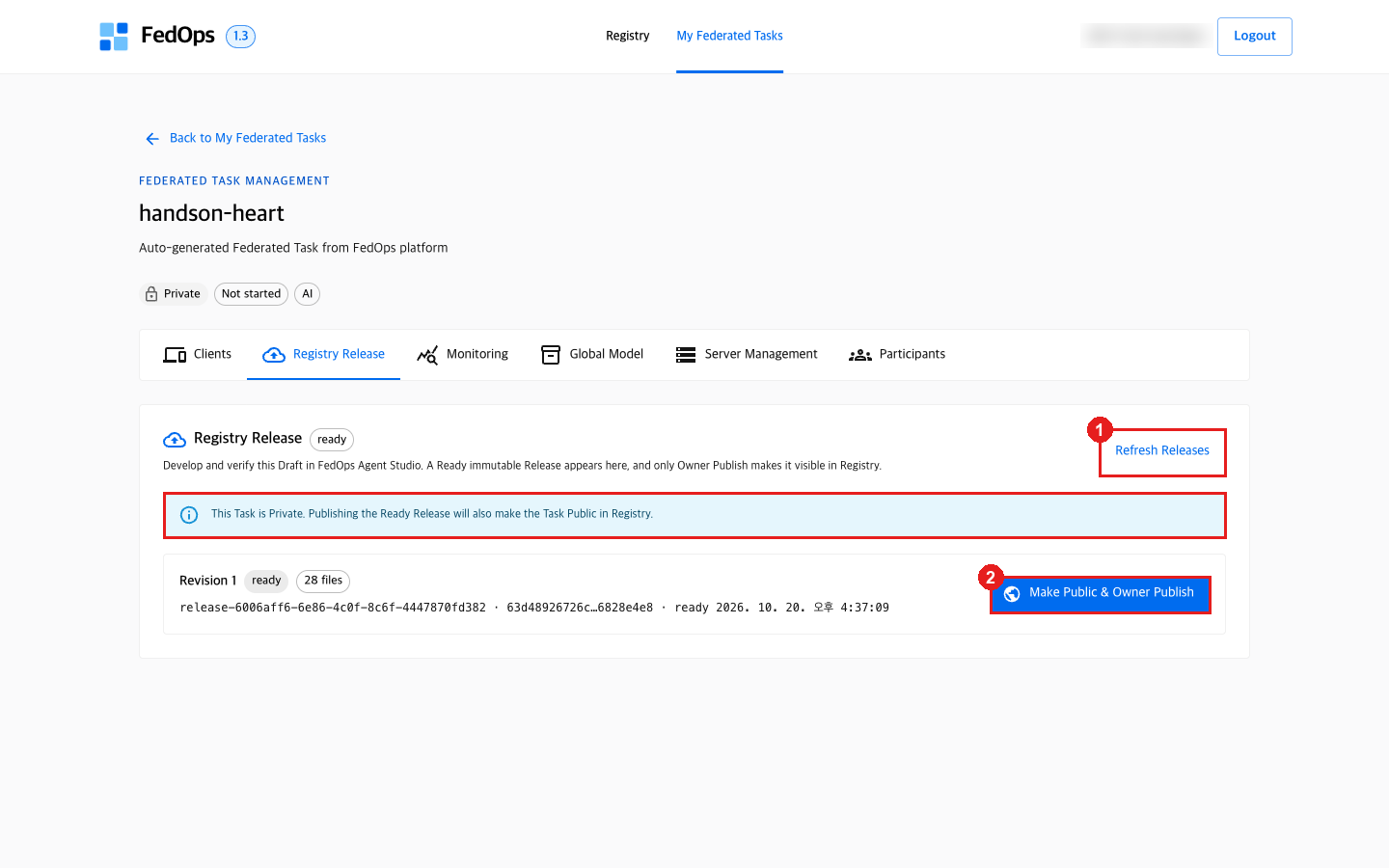
- Click Refresh Releases. Only needed if Revision 1 is not visible.
- Click Make Public & Owner Publish for Revision 1. It publishes immediately, with no confirmation dialog.
Publishing makes the Task Public, even if you created it as Private. Code, model, and README become public; data is not uploaded. If you do not want it public after the practice, you can delete it with Task actions → Delete task in the Console.
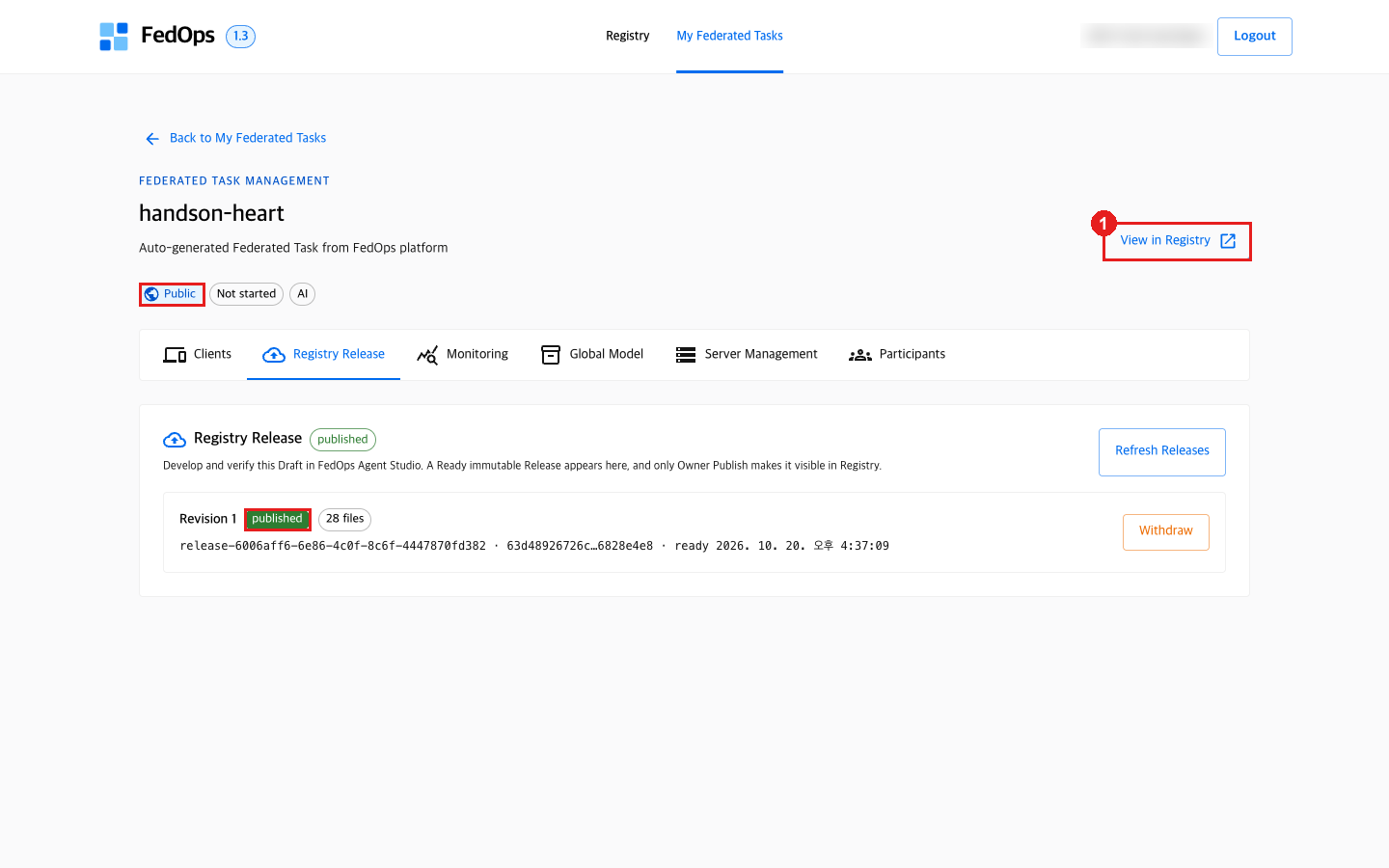
The badge changes Private → Public, Revision 1 becomes published, and the button on the right changes to Withdraw (unpublish).
- Click View in Registry to see the public view in a new tab.
5) Check in the Registry
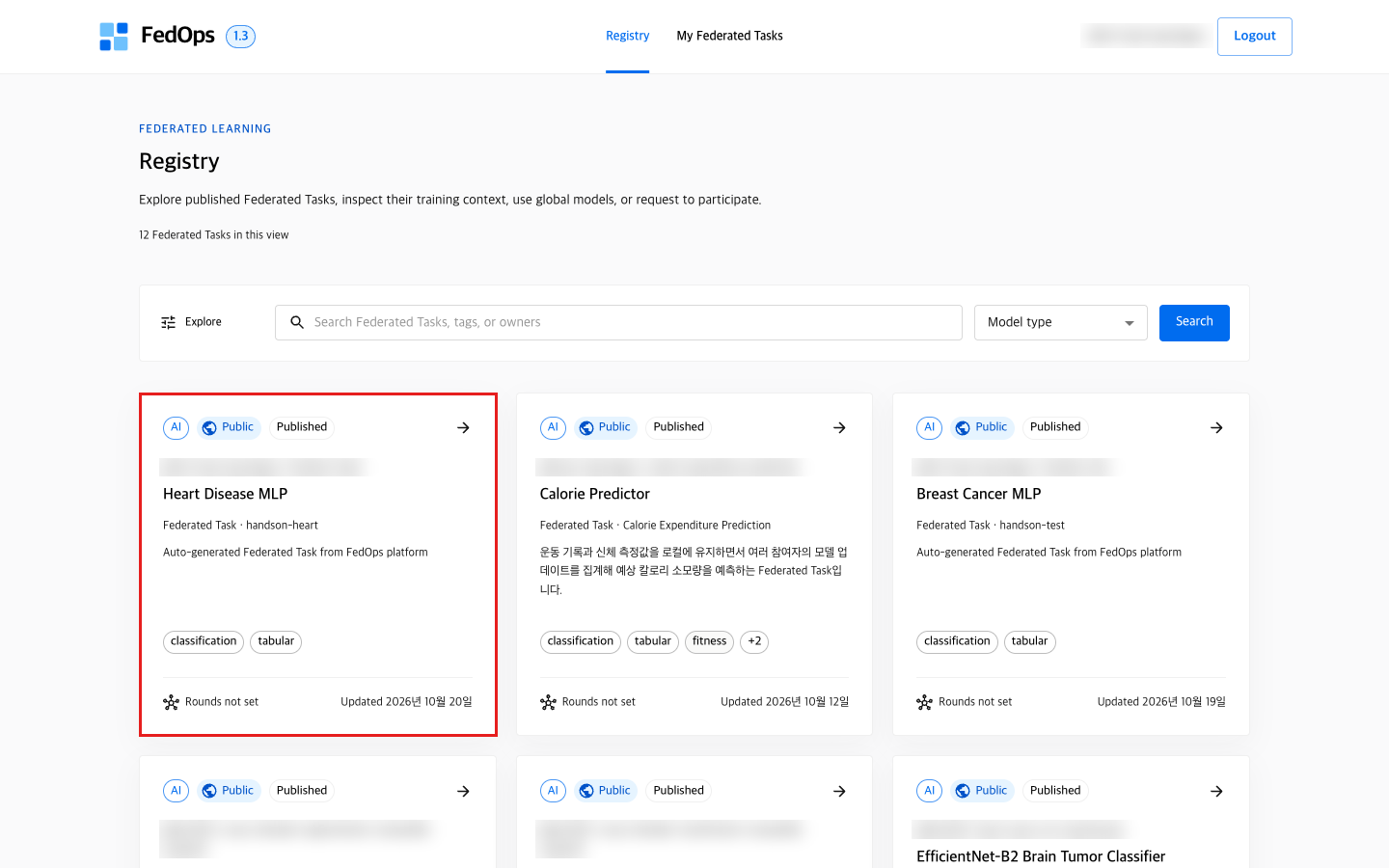
The Heart Disease MLP card appears in the Registry list in the top menu. The card title is not the Task name but the model display name in config.yaml (display_name). Other people can find the Task through this card and request to join.
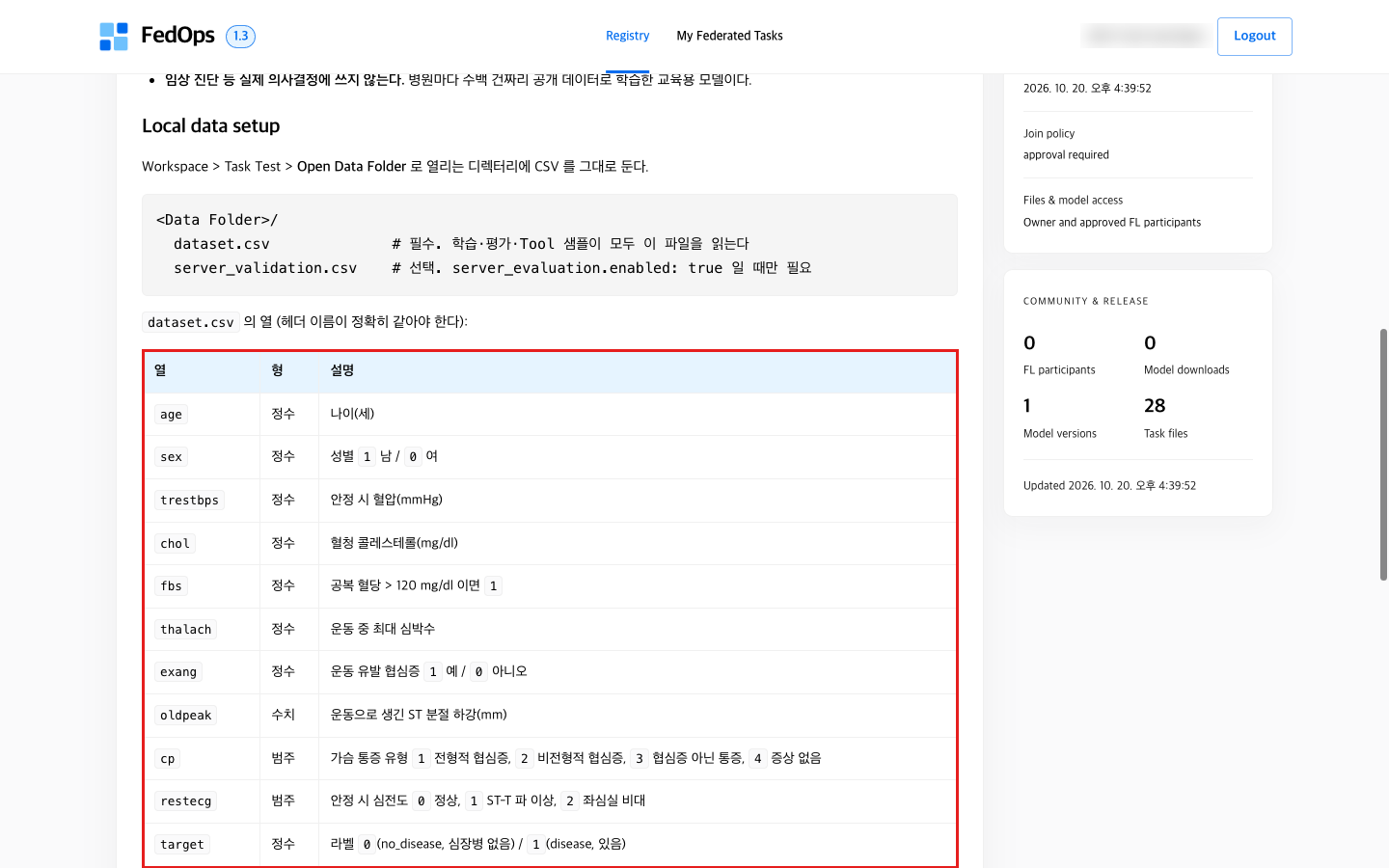
Clicking the card shows the template’s README.md as is on the Federated Task Card: the meaning of the 10 columns, the data source, and uses to avoid (diagnosis). The README is the public documentation.
⚙️ Options explained — publishing buttons
| Button | What it does | This tutorial |
|---|---|---|
| Make Public & Owner Publish | Finalizes the Release Candidate as the Published Release and makes the Task Public | Clicked — it must be public for Clients to find it |
| Withdraw | Unpublishes | Not clicked (not verified in practice) |
| Task actions → Delete task | Deletes the Task. Cannot be undone | When the practice is over and you do not want it public |
A Release is a fixed bundle. Editing the Workspace code after publishing does not change the code that goes to Clients. To change the code, go through Readiness → Release Candidate (revision 2) → publish again.
📚 Federated learning background — why fix the Release
Within a round, every Client must train with exactly the same code and model structure. If some Clients train with old code and others with new code, parameter shapes may differ so they cannot be merged, or they merge but mean different things. So FedOps treats a published Release as an immutable snapshot, and when the server starts it fixes “which Release, starting from which model” together (chapter 6).
✅ Checklist
- Local Train is
succeededand PRIMARY METRIC is above 0.62 Release Readiness passedappearedRelease Candidate submitted: revision 1appeared- In the Console the Task is
Publicand Revision 1 ispublished - The Heart Disease MLP card and README are visible in the Registry
If something goes wrong
| Symptom | Fix |
|---|---|
| PRIMARY METRIC near 0.62 | Raise epochs in config.yaml (default 30) |
| Local Train fails immediately with a data error | Go back to chapter 3 step 4) and check for Data detected |
Value-not-in-vocabulary error (cp, restecg) | You edited dataset.csv by hand or put in other data. Rebuild it with prepare_data.py |
README is missing sections | The README must have Intended use / Local data setup / Federated participation / Limitations / Privacy sections |
model.display_name must be finalized | display_name in config.yaml is still the default. Check that you put in the template’s config.yaml |
| Class shortage error | Each class needs at least 3 rows |
| Submit Release Candidate is disabled | Release Readiness must pass first. If you changed code, check again |
| No candidate in Registry Release | Click Refresh Releases |
| Published by mistake | The Registry Release tab has an unpublish button, Withdraw (not tried in practice). To take the Task down completely, Task actions → Delete task |
Next
5. Approve Participants — now Clients can find this Task and request to join. What happens on the Client side is in Client Track ch. 1.