
2. Call It over an API
📍 Where you are: Model Use 2/3 — ① Agent → ② Serving API → ③ App
Screen: Agent Studio (Agents) + terminal · Next: call it from the demo app and your project
🎯 What you do in this step: Open the built Agent as an HTTP API on your PC (its own port + token) and call it with the template’s minimal code. From now on any program outside the Studio screen can use this Agent — that is, the model built by federated learning.
The blurred areas in the screenshots are account names and tokens.
Known issue (still reproduced on 2026-10-11): requesting a prediction (
--sample) from the built Agent’s API fails withTool AI smoke test failed(Readme file does not exist: README.md), because Studio copies the build snapshot withoutREADME.md. After every Build, put the README in with the line below and it works end to end. (It copies the README from the Studio Workspace you opened in Owner Track ch. 3.)
AGENT_ID=agent-xxxxxxxx   # the gray text under the Agent name on the Agents screen
cp ~/fedops-workspace/accounts/*/projects/handson-heart/README.md ~/fedops-workspace/accounts/*/.local-data/agents/builds/$AGENT_ID/r1/components/tool-0/project/
- 1) Turn on the Serving API (Agent Studio)
- 2) Set up the minimal code
- 3) Try calling it
- 4) How to read the response
- 5) Check the boundaries (optional)
- ✅ Checklist
- Reading error states
- Next
1) Turn on the Serving API (Agent Studio)
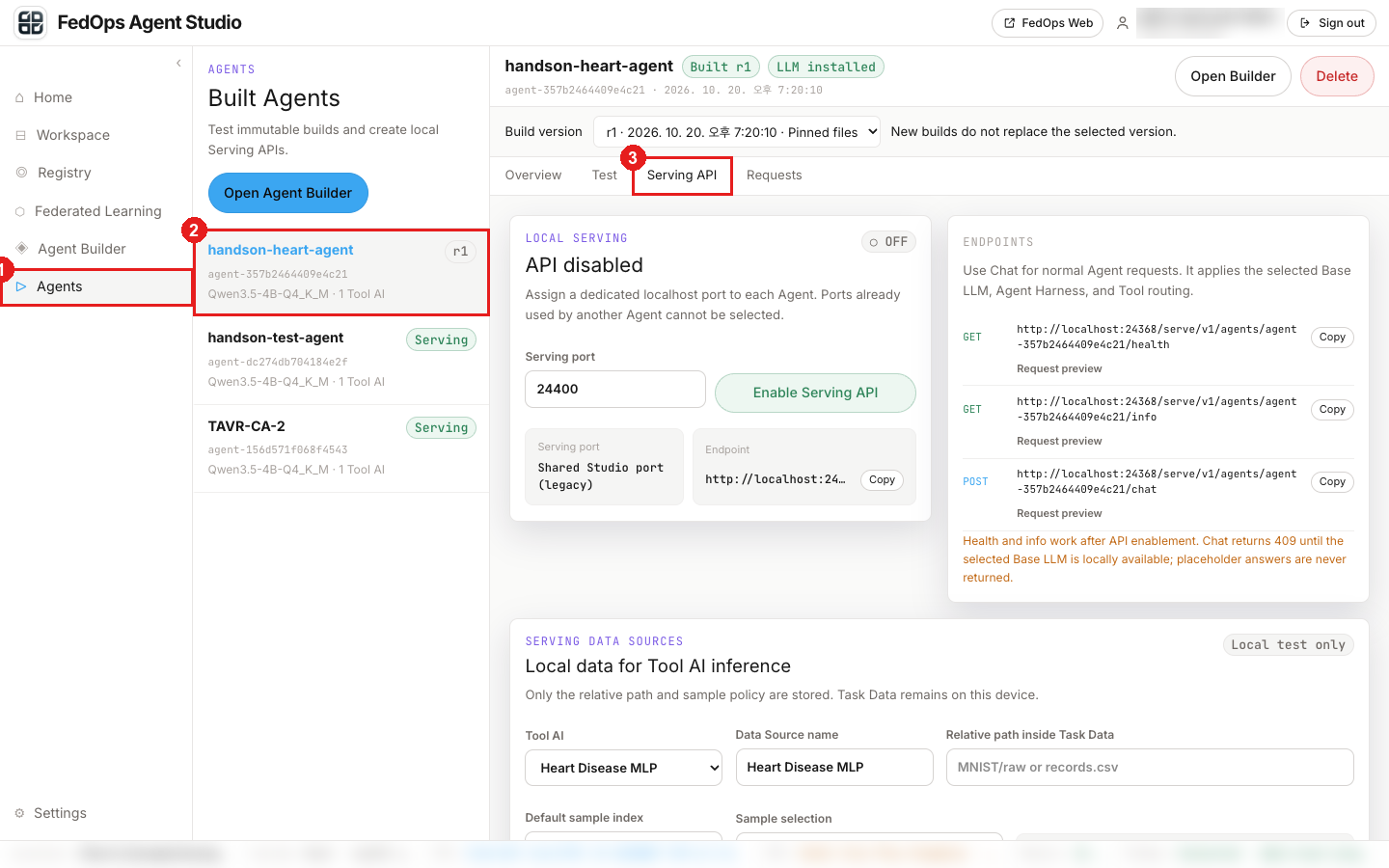
- Click Agents in the left menu. (If you clicked Open in Agents at the end of chapter 1, you are already here.)
- Choose handson-heart-agent. The gray
agent-…under the name is the Agent id (used for the README workaround above). - Click the Serving API tab.
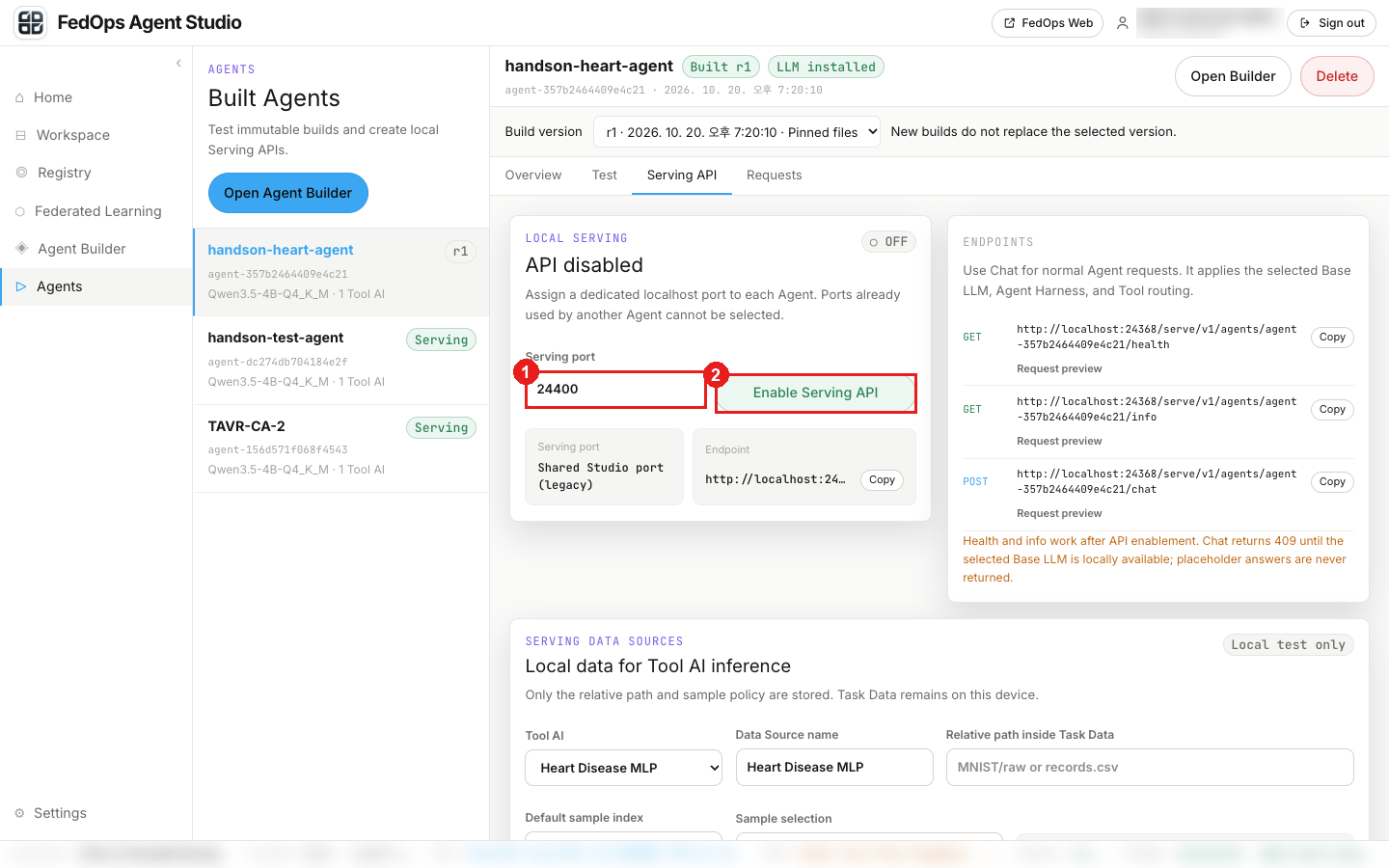
- Choose the Serving port. For your first Agent keep
24400(range 24400–24499). - Click Enable Serving API.
If another Agent already uses that port, you get Port 24400 is already assigned to another Agent. The screen shows a port in use as the default too. In that case change the port to the next number, such as 24401, and click Enable Serving API again. (In the 2026-10-20 run, two other Agents were using 24400 and 24401, so 24402 was used. Replace the port in the examples below with yours.)
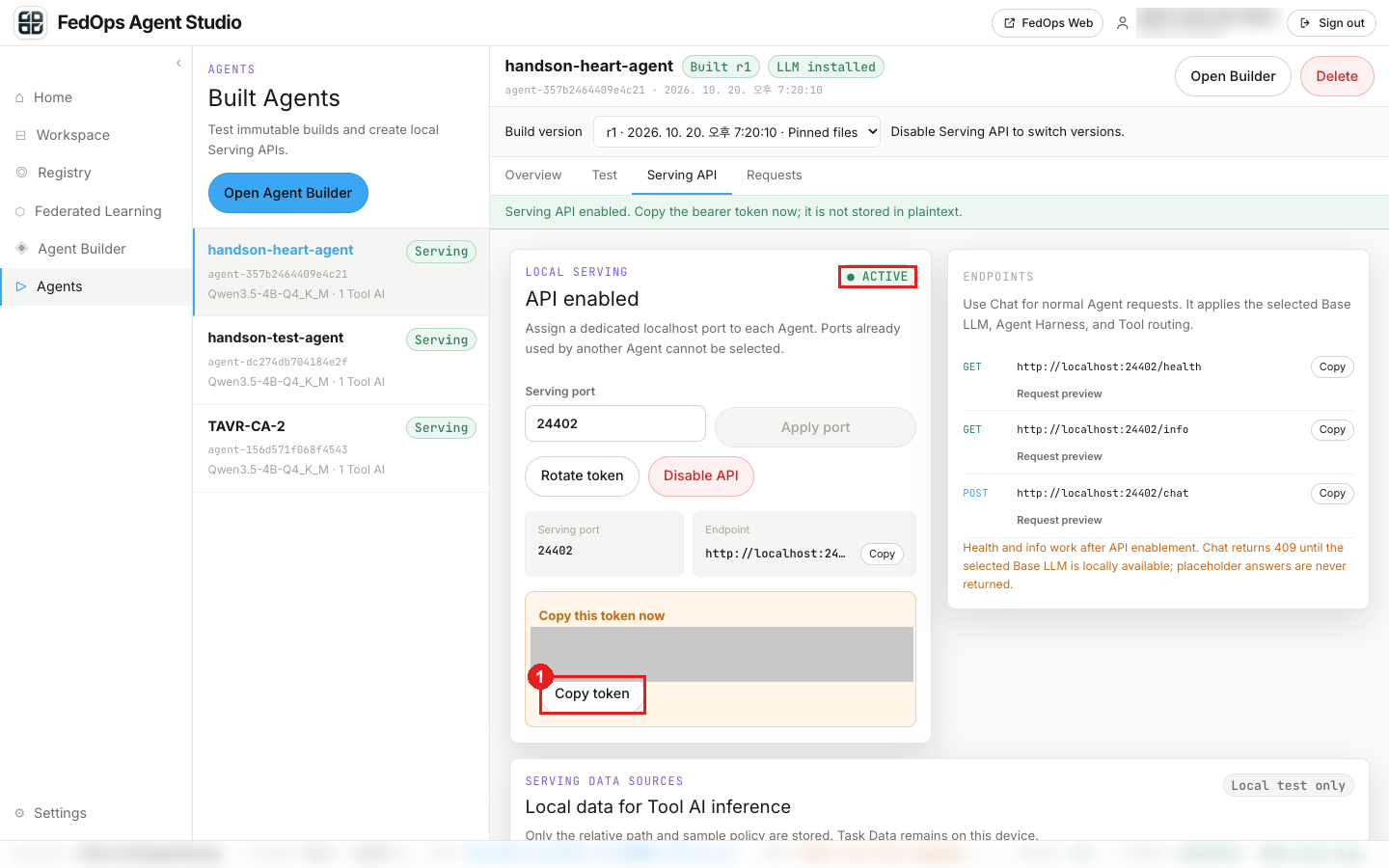
It is on when you see ● ACTIVE and Endpoint http://localhost:<port>.
- Click Copy token and keep the token. The token is shown only this once (
Copy this token now). If you missed it, get a new one with Rotate token.
Treat the token (
fas_…) like a password. Do not capture and share it or commit it to git. The.envbelow is in.gitignore.
⚙️ Options explained — Serving API
| Option · button | What it decides | This tutorial |
|---|---|---|
| Serving port | Port on your PC where the Agent opens. Range 24400–24499, one per Agent | 24400, or the next number if taken |
| Enable / Disable API | Opens and closes the API. While on, that Agent cannot be deleted | Enable |
| Copy token | The secret key (fas_…) for calling the API. Shown only once | Copy into .env |
| Rotate token | Creates a new token and invalidates the old one | When you missed the token or it leaked |
| Advanced · Direct Tool API | A path that calls only the Tool (model) directly, without the LLM. Enabled per Tool. Off by default | Off — only check that it is blocked in 5) |
Why a token is needed: the API opens on a port of your PC. Other programs on the same network can reach that port too, so only holders of the token can call the Agent.
2) Set up the minimal code
Do this in the template’s app folder.
cd app
pip install -r requirements.txt
cp .env.example .env
Fill in .env.
AGENT_SERVING_URL=http://localhost:24400   # the port chosen in 1)
AGENT_SERVING_TOKEN=fas_...                # the token copied in 1)
AGENT_TOOL_ID=local:handson-heart
AGENT_TIMEOUT_S=900                        # only for the first call after a build; 240 afterwards
The first call after a build takes close to 10 minutes, because it installs a fresh Tool runtime. Measured 449 s on 2026-10-20 (Tool 412 s), then 43 s from the second call (Tool 13 s). Raise
AGENT_TIMEOUT_S=900only for the first call, and do not send overlapping requests until it finishes. Keeping the PC from sleeping also matters.
3) Try calling it
① Is it alive
python test_agent.py --health
{
  "status": "ready",
  "agentId": "agent-…",
  "buildRevision": 1,
  "llmRuntimeStatus": "installed",
  "toolCount": 1,
  "provider": "local-huggingface",
  "model": "bartowski/Qwen_Qwen3.5-4B-GGUF"
}
status: ready is what you want. With a Hugging Face LLM, llmRuntimeStatus shows installed even when ready.
② Which Tool is attached
python test_agent.py --info
After the full JSON, the last line shows Tool id: local:handson-heart (handson-heart). /info also returns the Tool’s input spec (manifest), so an app can build its input form automatically. This Task’s spec includes 10 inputs and the information (enum) that cp and restecg must be one of fixed values.
③ Get a prediction
python test_agent.py --sample 0
It sends row 0 of data/out/test.csv (evaluation rows of both hospitals) as the Tool input. The actual label of this row is no heart disease (target=0).
Measured 2026-10-20 (Global Model v1). The script’s labels and the Agent’s answer are in Korean; translations are on the right.
(참고) 이 행의 실제 라벨 target=0                  ← (Note) actual label of this row

=== 답변 (449.0초, status=succeeded) ===        ← Answer. First call after the build; the second took 42.7 s
판정 결과: no_disease (심장병 없음) 0.982          ← Result: no_disease (no heart disease)
no_disease 0.982 / disease 0.018
이 결과는 심장병이 없는 것으로 매우 확실히 판정되었습니다.        ← Judged very confidently as no heart disease
이 결과는 공개 데이터로 학습된 실습용 모델의 출력이며 진단 근거가 아닙니다.   ← Practice model on public data, not a basis for diagnosis

=== Tool 예측 ===                               ← Tool prediction
  no_disease (label=0, confidence=0.982)
    no_disease: 0.982
       disease: 0.018
  modelVersionId: 6ad72541…
  Tool 소요: 411804 ms                           ← Tool time. The second call took 12838 ms

=== trace ===
  tool-routing   passed
  tool-ai        passed 411804
  base-llm       passed
Why the numbers differ from the chapter 1 Test tab: chapter 1 used row 0 of the Owner’s Hungarian data, and this is row 0 of the template’s
test.csv, a different patient.
4) How to read the response
The prediction is nested one level deeper inside toolResult.result. response is the sentence the LLM wrote, and toolResult.tool.modelVersionId tells which model version answered. The minimal code’s to_prediction() handles this for you.
5) Check the boundaries (optional)
python test_agent.py --chat "무엇을 할 수 있어?" # "What can you do?" Without Tool → only the LLM answers
Measured on 2026-10-20 (63 s): only base-llm remains in the trace, along with (Tool 결과 없음 — input 을 함께 보내지 않으면 Tool 은 실행되지 않는다) (no Tool result — the Tool does not run unless input is sent with it).
echo '{"bogus_key": 1.0}' > bad.json
python test_agent.py --payload bad.json --chat "x" # wrong keys → 409 BAD_INPUT (missing required field(s) ...)
python test_agent.py --invoke --sample 0           # direct Tool call → blocked by default
Measured 2026-10-20 (실패 = failed):
[실패: BAD_INPUT] 보낸 Tool 입력이 manifest 와 맞지 않는다: input is missing required field(s): age, sex, trestbps, chol, fbs, thalach, exang, oldpeak, cp, restecg.
[실패: TOOL_UNAVAILABLE] Tool 을 실행할 수 없다: Direct Tool API is disabled for this Tool AI. Enable it in Serving API > Advanced.
Direct calls must be enabled per Tool under Advanced · Direct Tool API in the Serving API tab.
⚙️ Explained — the minimal code’s settings (.env)
| Value | Meaning | If you change it |
|---|---|---|
AGENT_SERVING_URL | Agent address | Change it together with the port |
AGENT_SERVING_TOKEN | The token copied above | Use the new value after Rotate |
AGENT_TOOL_ID | Id of the Tool to call. Comes from the Workspace name (local:handson-heart). If empty, the first Tool in /info is used | Changes if you use another Task’s model |
AGENT_TIMEOUT_S | Maximum seconds to wait for a response | 900 only for the first call after a build, 240 afterwards |
✅ Checklist
- The Serving API is
● ACTIVEand the token is in.env - You copied the README into the build snapshot
--healthgivesstatus: ready--infoshowslocal:handson-heart--sample 0returns an answer with a prediction
Reading error states
| State reported by the minimal code | Meaning | Where to fix |
|---|---|---|
BAD_INPUT | The input sent differs from the spec (e.g. 5 for cp) | The payload you sent |
NEEDS_MODEL | LLM not ready | Prepare Base LLM in Studio |
TOOL_UNAVAILABLE | Cannot connect, token rejected, Tool failure, or timeout | Check Studio, port, and token. If Readme file does not exist, apply the README workaround above |
NEEDS_REBUILD | Tool/Harness changed after the build | Build the Agent again (then redo the README workaround) |