
5. Approve Participants
📍 Where you are: Task Owner 5/7 — ① Design → ② Create Task → ③ Workspace → ④ Train · publish → ⑤ Approve → ⑥ Campaign → ⑦ Results
Screen: FedOps Console · Other side: the Client requested to join in Client Track ch. 1 · Next: configure the campaign and start the server
🎯 What you do in this step: Look at the join request from the Client (Cleveland hospital) and decide who to accept into this federated learning. Only approved Clients receive the Task’s code and model, open a Workspace, and join training. This step exists because you set Participation to
Owner approval requiredin chapter 2 (withOpen, requests are approved automatically and this step disappears).
- 🖱️ Follow along
- ⚙️ Options explained — participant states and buttons
- ✅ Checklist
- If you practice alone
- Next
🖱️ Follow along
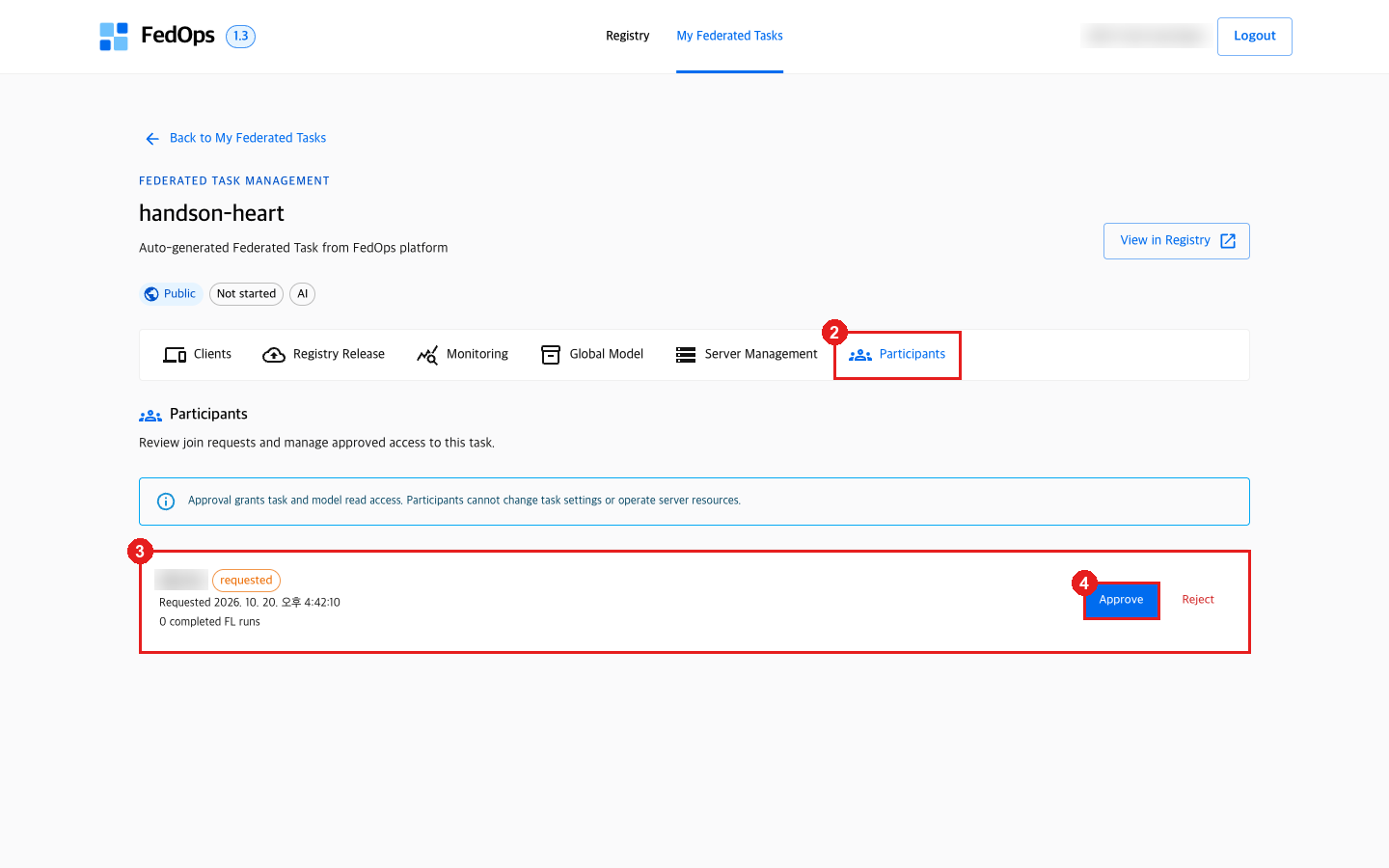
- Go to Console → My Federated Tasks →
handson-heart. - Click the Participants tab. It shows “Review join requests and manage approved access to this task.”
- On the requester’s row, check
@handle, statusrequested, and the request time. - Click Approve.
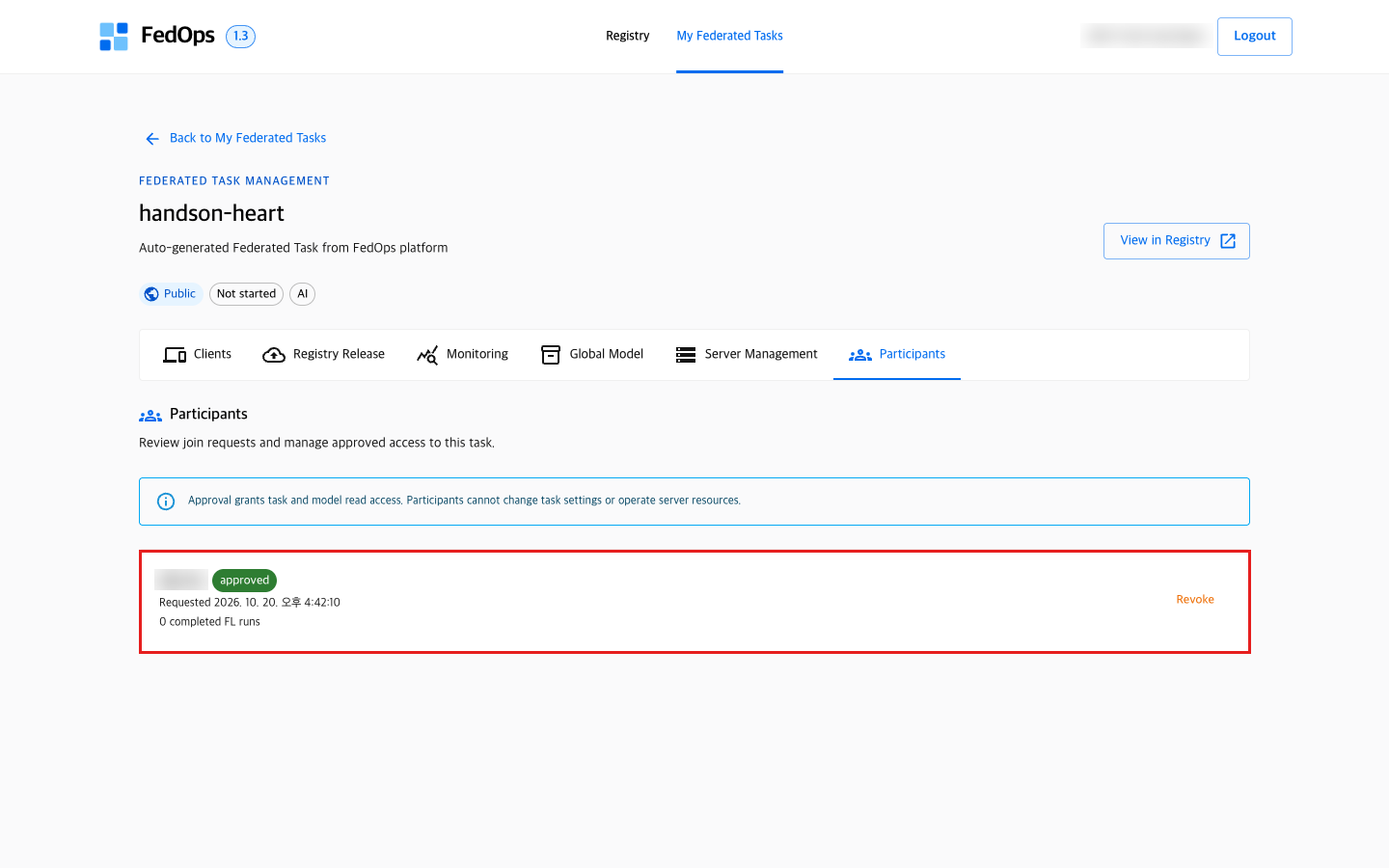
- Check that the status changed to
approved. Click Revoke on the right only to withdraw approval.0 completed FL runsmeans this participant has not finished any federated learning run of this Task yet.
The Client can now open the Workspace (Client Track ch. 2). While the Client places data and runs the readiness check, the Owner can move on to preparing the server in chapter 6.
⚙️ Options explained — participant states and buttons
| State | Meaning | Available buttons |
|---|---|---|
requested | A request came in and waits for the Owner’s decision | Approve / Reject |
approved | Can join. Can receive the code and model and open a Workspace | Revoke (withdraw approval) |
rejected | Rejected | — |
| Button | When clicked |
|---|---|
| Approve | The Client gets participation-only files and versions and can bring them into a Workspace |
| Reject | Rejects the request |
| Revoke | Withdraws an already approved participation right |
Each row also shows the number of completed federated learning runs of that participant (N completed FL runs) and the last participation time, so you can see who actually contributed to training.
This tutorial’s criterion: check by handle that the requesting account is the person you agreed to practice with (the Cleveland hospital role), then approve. In real medical federated learning, this corresponds to checking that the institution was agreed in advance by contract, IRB, and so on.
📚 Federated learning background — how many to accept
- Approved participants ≥ participants per round. Clients per round, set in chapter 6, means “how many must finish training in a round before merging”. If you set it larger than the number approved, the server waits forever.
- More is better but slower. More participants give the Global Model more varied data, but rounds get longer because they wait for the slowest participant.
- Accepting only similar sites reduces the non-IID difficulty but also the diversity federated learning brings. Accepting very different sites can instead make things worse. For example, adding this data’s VA hospital (78% heart disease) as a third participant more often lowered performance on the Owner’s data in simulation. In this tutorial two sites take part: the Owner (Hungary, 38% heart disease) and the Client (Cleveland, 46%). You approve one Client.
✅ Checklist
- You saw the Client’s request in Participants
- After Approve the status is
approved - You know the number of approved participants (used for Clients per round in chapter 6)
If you practice alone
There is nobody to approve. The Owner can already join its own Task (the screen shows an Owner · Participant badge). Go straight to chapter 6.