
3. Participation Readiness Check
📍 Where you are: Client 3/5 — ① Find · request → ② Workspace · data → ③ Readiness check → ④ Join → ⑤ Wrap-up
Screen: Agent Studio · Other side: meanwhile the Owner prepares the campaign
🎯 What you do in this step: Before connecting to the server, run everything on your PC in advance. It checks that the code you received is exactly the published Release, that your data matches the format, and that your model has the same shape as the other participants’ models. You can do this even while the server is off. If something breaks on your PC after rounds start, every other participant has to wait, so finish the check beforehand.
- 🖱️ Follow along
- ⚙️ Explained — badges and check items on the screen
- ✅ Checklist
- If something goes wrong
- Next
🖱️ Follow along
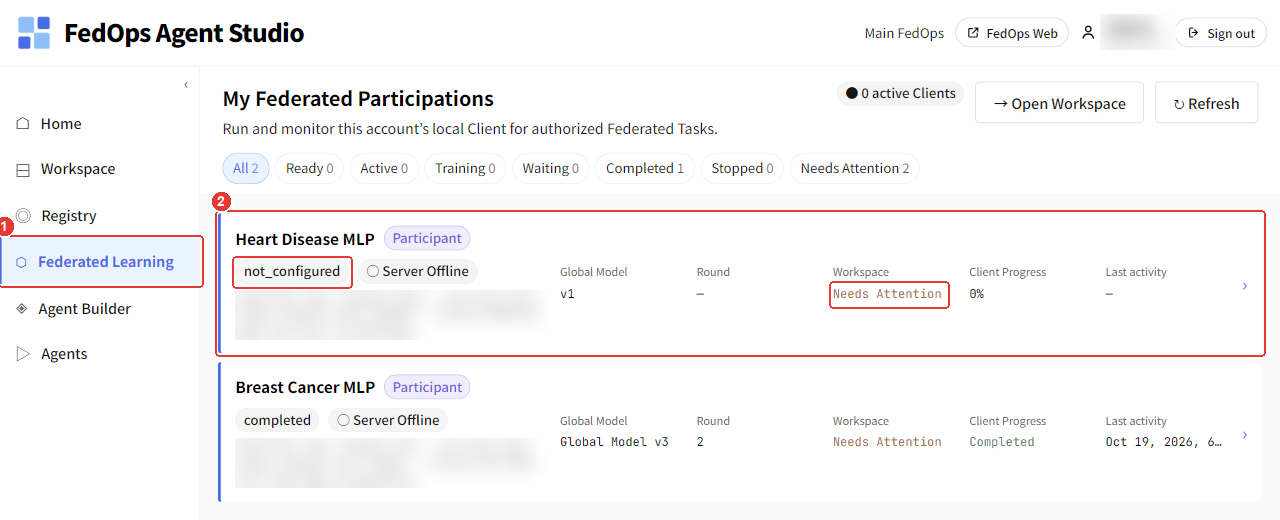
- Click Federated Learning in the left menu.
- Click the Heart Disease MLP card. Before the check, the card shows
not_configuredandNeeds Attention.
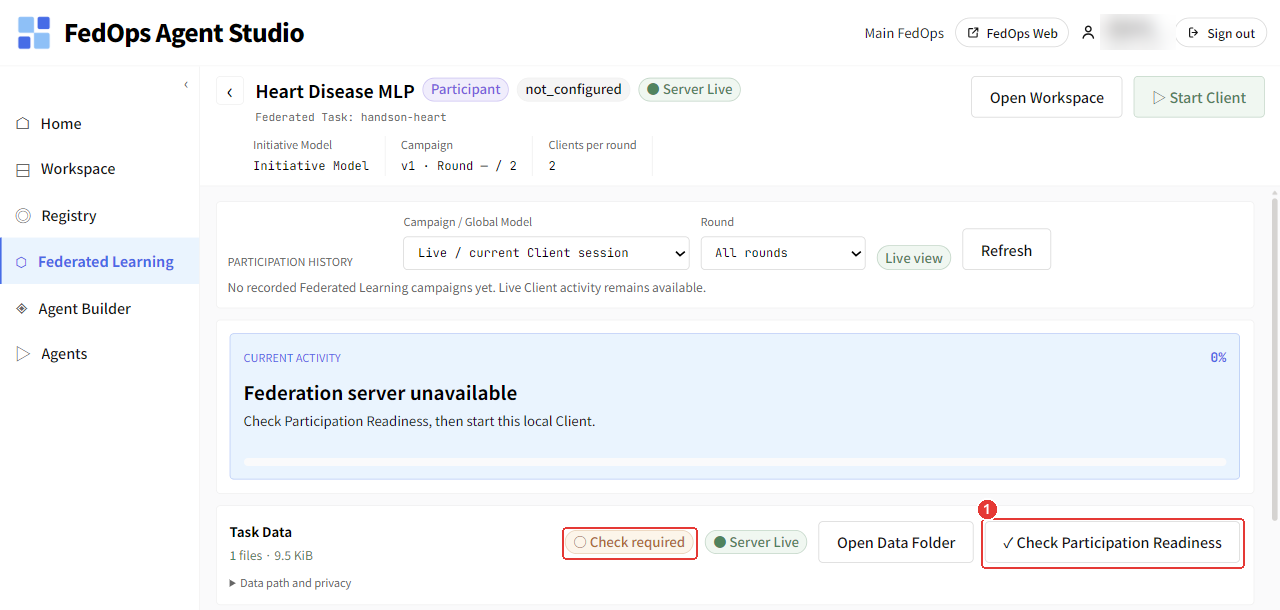
- Click Check Participation Readiness on the Task Data row. It checks by training and evaluating the model on your local data, which takes longer than you might expect (about 5 min 40 s, measured on a Windows laptop on 2026-10-20). Keep waiting even if it stays at
Evaluating local model 92%for a while.
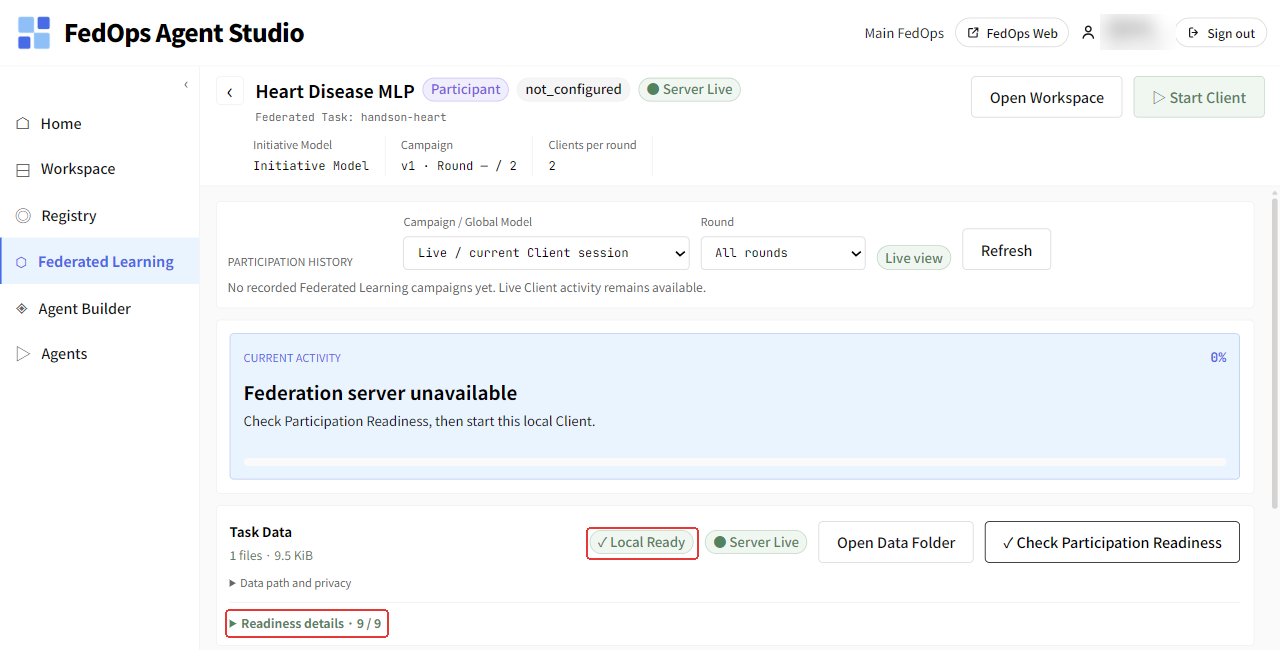
It passes when ○ Check required changes to ✓ Local Ready and Readiness details · 9 / 9 appears below. Do not click Start Client yet. The Owner has to start the server (chapter 4).
⚙️ Explained — badges and check items on the screen
| Badge | Meaning |
|---|---|
○ Check required → ✓ Local Ready | Whether preparation on your PC (code, environment, data) is complete |
● Server Live / Server Offline | Whether the Owner’s aggregation server is on. Independent of Local Ready |
Expanding Readiness details shows per-item results. The nine items are:
| Item | What it checks | If it fails |
|---|---|---|
| Federated Task linked | This Workspace is linked to the Federated Task in the Registry | Reopen it via Joined Registry Task as in ch. 2 step 1) |
| Participant Runtime compatible | Your Studio’s participant runtime fits this Task | Update Agent Studio to the latest version |
| Published Release installed | Your code is exactly the Release the Owner published | If you changed code, revert it |
| Federated parameter contract | Your model’s parameter names and shapes match the Release signature | Tell the Owner (a Release problem) |
| Local dataset accessible | dataset.csv exists in the Data Folder and can be read | Check the file name and location as in ch. 2 step 4) |
| Participation Readiness | The check was done with the current code and the current data | If you changed the data, check again |
| Python environment ready | The Sync in ch. 2 finished | Redo ch. 2 step 2) |
| Global Model available | There is a Global Model to receive from the server | Tell the Owner (check campaign preparation) |
| Participation authorized | This account’s participation is approved | Check your join request and the Owner’s approval in ch. 1 |
If you change the data, you must check again. The result is tied to the code and data at that moment, so changing files reverts it to Task Data or Workspace source changed.
The check is also reset when the Owner changes the campaign or starts the server. When a new campaign server starts, both the Owner and the Client go back to
○ Check required, and in that state Start Client cannot be clicked. If possible, check after the Owner has finished the campaign settings, and confirm✓ Local Readyagain before Start Client in chapter 4.
📚 Federated learning background — why check separately from the server
A federated learning round waits for the slowest participant. If one Client fails mid-round with “wrong column name”, the server either keeps waiting until enough participants gather or throws that round away. So FedOps separates “my side (Local)” from “server state (Server)” and has everyone finish beforehand everything they can on their own PC.
The parameter signature comparison is the same story as “why the model structure must be fixed” in Basics ch. 2. If even one shape differs, FedAvg cannot merge.
✅ Checklist
- You saw
✓ Local ReadyandReadiness details · 9 / 9 - You told the Owner “I’m ready”
If something goes wrong
| Symptom | Fix |
|---|---|
| Participation Readiness fails | Usually dataset.csv is missing in the Data Folder or the column names differ. Look at the failed item in Readiness details |
Value not in the vocabulary (cp, restecg) | You edited dataset.csv by hand or put in other data. Rebuild it with prepare_data.py |
| The card is not visible | Check that you were approved and that you opened the Workspace in ch. 2 |
Next
4. Join Federated Learning — start once the Owner starts the server.