
2. Create a Task
📍 Where you are: Task Owner 2/7 — ① Design → ② Create Task → ③ Workspace → ④ Train · publish → ⑤ Approve → ⑥ Campaign → ⑦ Results
Screen: FedOps Console · Next: open this Task’s Workspace in Studio
🎯 What you do in this step: Create an empty shell (Web Draft) in FedOps saying “this is the federated learning I want to run”. You decide the name, what kind of model it is, and who can see and join it. There is no code, data, or model yet; you fill those in Studio in the next chapter. Nothing is published yet at this step.
🖱️ Follow along
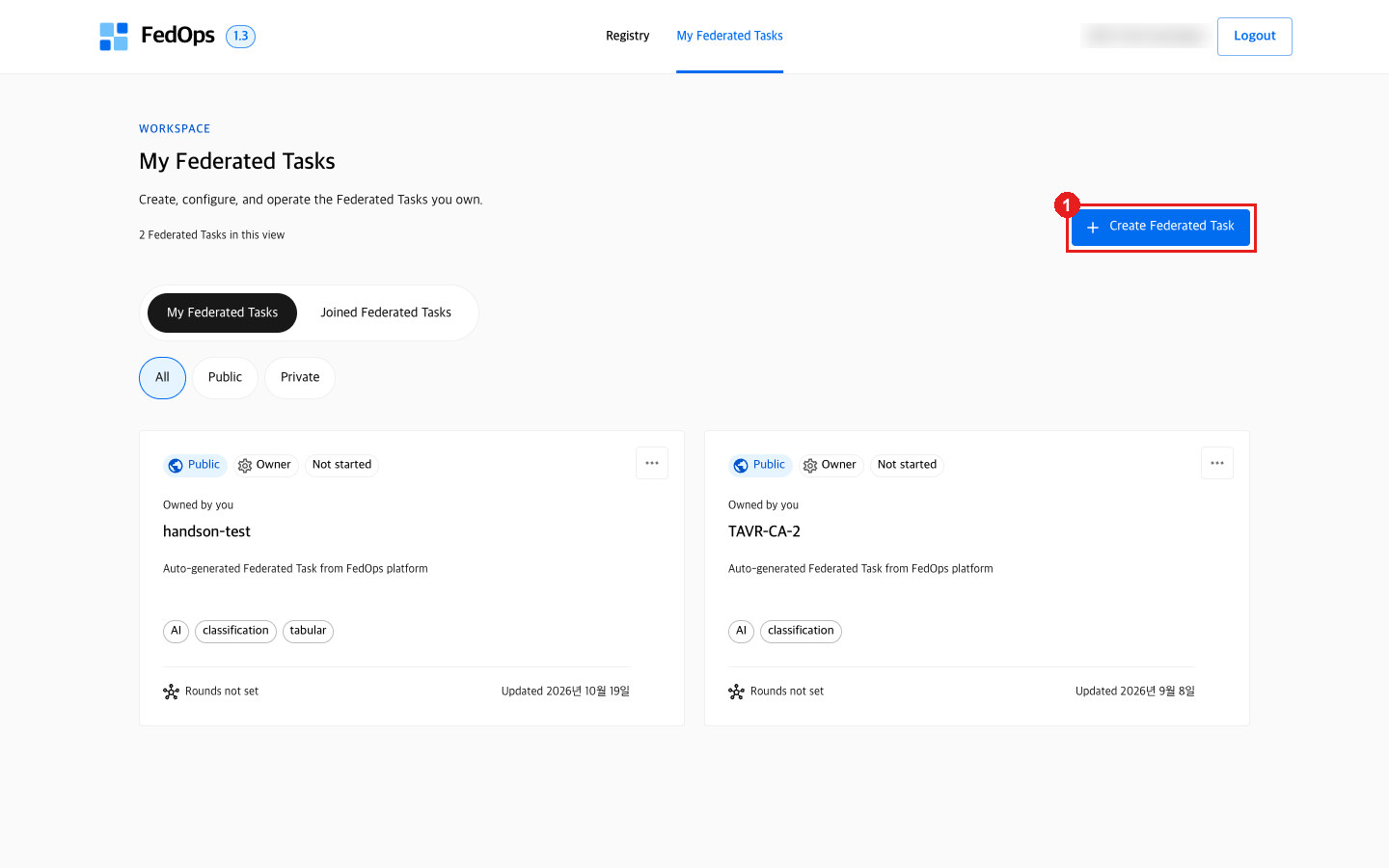
- In the FedOps Console top menu My Federated Tasks, click Create Federated Task.
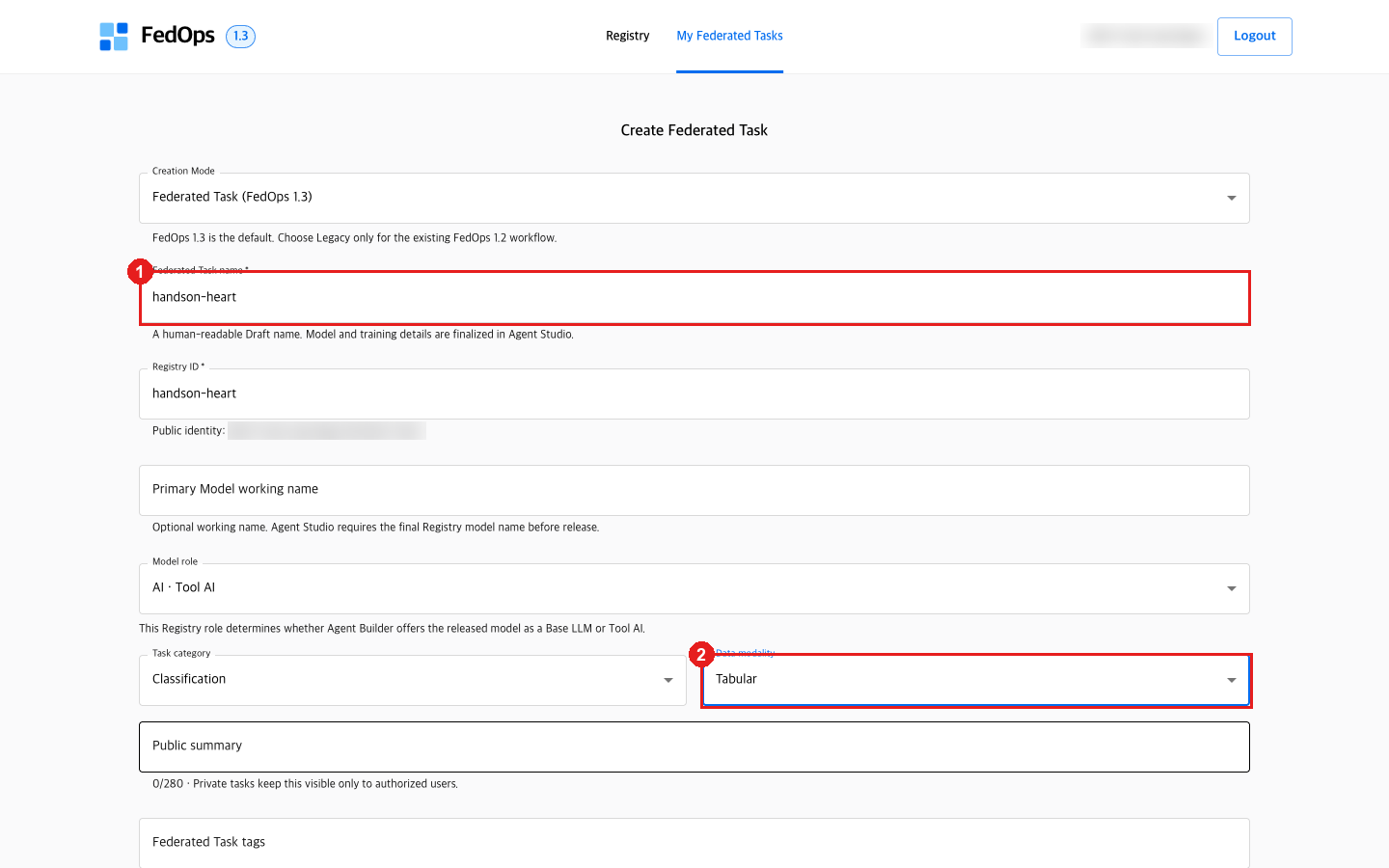
- Enter
handson-heartin Federated Task name. Registry ID below fills in automatically. - Change Data modality to Tabular.
- Leave the rest as is and click Create. (See the options explained below for each field.)
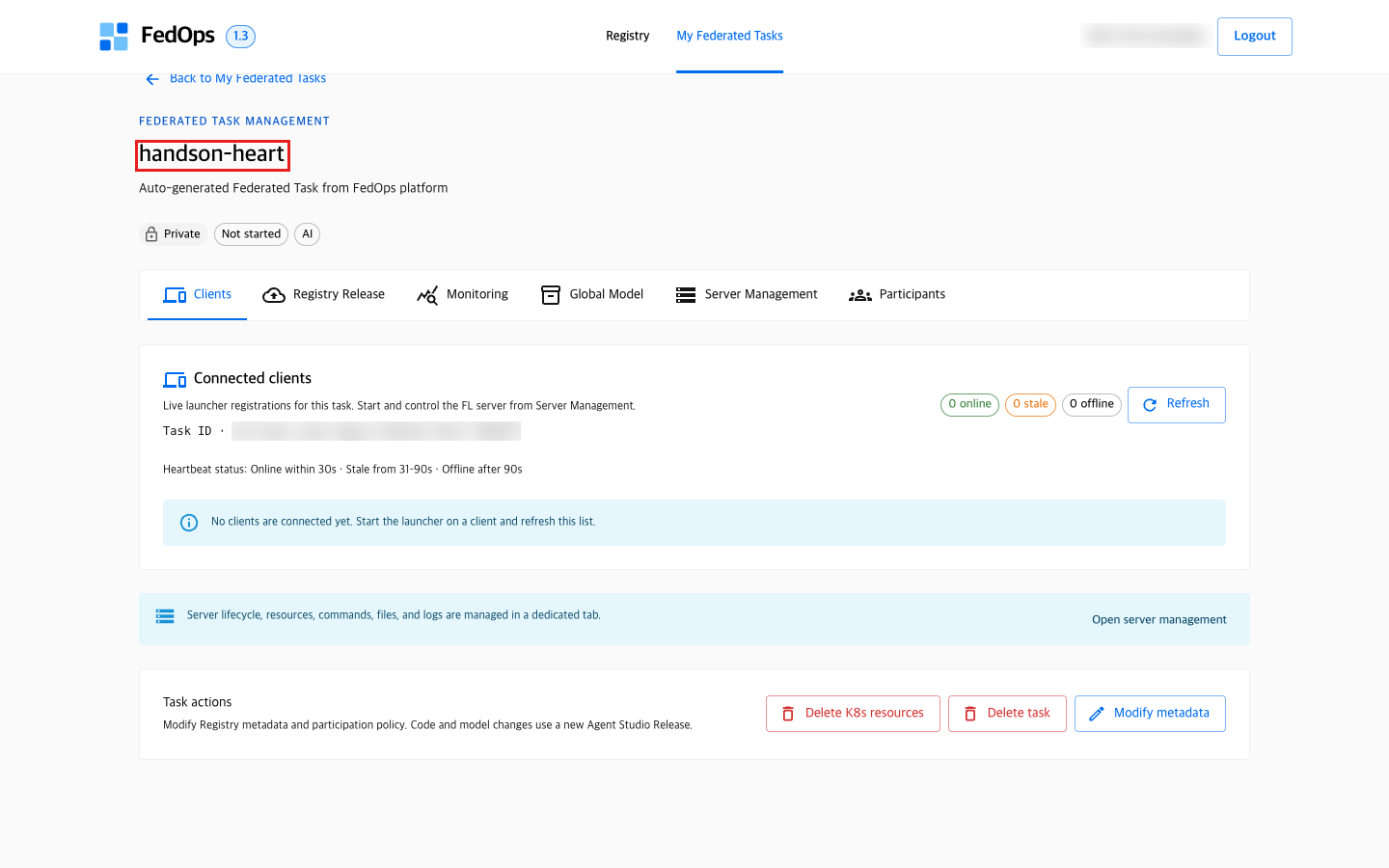
Success when the Task management screen titled handson-heart appears. The tabs at the top (Registry Release, Participants, Server Management, Monitoring, Global Model) are used in the following chapters.
⚙️ Options explained
Name and identity
| Field | What it decides | This tutorial |
|---|---|---|
| Creation Mode | Federated Task (FedOps 1.3) or Legacy (FedOps 1.2 style) | 1.3 — Legacy only to continue an existing 1.2 Task |
| Federated Task name | Human-readable name. Becomes the Studio Workspace name and later the Agent’s Tool id (local:handson-heart) | handson-heart |
| Registry ID | ID that distinguishes the Task in the Registry. Once published it becomes @my-handle/registry-id | Automatic from the name |
| Primary Model working name | Temporary model name. The final name shown in the Registry comes from model.display_name in the code’s config.yaml | Left empty — final name is the template’s Heart Disease MLP |
Kind of model
| Field | Choices | If you change it | This tutorial |
|---|---|---|---|
| Model role | AI · Tool AI / LLM · Base LLM | Changes where Agent Builder suggests the finished model. Tool AI is a tool that outputs numbers (predictions); Base LLM is the language model that writes sentences | AI · Tool AI — our model is a classifier that outputs probabilities |
| Task category | Classification / Regression / Generation / Representation learning / Other | Category shown in the Registry. The training itself is decided by the code | Classification — two classes, no disease / disease |
| Data modality | Undecided / Image / Tabular / Time series / Text / Multimodal | Shown in the Registry and used for search | Tabular — a table of 10 test values per patient |
Changing Task category or Data modality does not change the training code. It is information Clients use in the Registry to judge “what this Task does”.
Visibility and participation — the two most important fields
| Field | Choice | What changes |
|---|---|---|
| Visibility | Private | Only authorized people see the Task. It is not listed in the Registry |
Public | Listed in the Registry. Task information and downloads of registered Global Models become public. Server control, YAML, logs, and Owner functions are not public | |
| Participation | Owner approval required | A Client must request to join and the Owner must approve |
Open (automatic approval) | Requests are approved immediately |
This tutorial’s choice:
- Start with Visibility = Private. There is no reason to show an empty Task before code and model are ready. It becomes Public when you publish to the Registry in chapter 4.
- Participation = Owner approval required. In medical federated learning, the Owner needs to know “who is adding data to our model’s training”. If anyone could join and train on bad data, the Global Model could break. It also lets you experience the request → approval process in this tutorial.
📚 Federated learning background — why screen participants
A federated learning server averages the parameters clients send on trust. It cannot see the data, so verification is hard. Therefore:
- Data quality issues: a single client trained on badly labeled data can make the Global Model worse.
- Malicious participation (poisoning): attacks that send parameters designed to break the model or make it misbehave on specific inputs have been studied.
Real medical federated learning usually fixes the participating hospitals by contract in advance (cross-silo). Think of the Hungarian and Cleveland hospitals in this tutorial as having that relationship. Owner approval required brings that practice onto the screen. Open is for lowering the barrier, as in open research collaborations.
Description
| Field | What it decides |
|---|---|
| Public summary | One-line description on the Registry card (280 characters). If Private, only authorized people see it |
| Federated Task tags | Tags for search (comma separated) |
The detailed description Clients actually read is not this field but the code’s
README.md. The README is shown as is on the Registry Task card, and Clients check the data format there (10 columns andtarget). You will see it in chapter 4.
What you do not decide here
The number of rounds, number of participants, and aggregation method are not decided when creating the Task. You decide them each time you train, in the campaign in chapter 6. The model structure, preprocessing, and training settings are decided in the code (config.yaml) in the next chapter.
✅ Checklist
handson-heartis in My Federated Tasks in the Console- You can explain what you chose for Visibility and Participation, and why
Next
3. Put Code and Data into the Workspace — open the empty Task in Studio and fill in the code every participant will run.